

How to Record the Screen of your Android Smartphone or Tablet on PC (Samsung Galaxy)
To record the screen of your Android smartphone on your PC, you need a capture card and an MHL cable.
| Hardware | Capture card (PCI or USB type) | MHL Cable Adapter |
|---|---|---|
| Image |   |
 |
| Price | $10~$200 (Amazon.com) | $10~$50 (Amazon.com) |
Record your Android Screen Activity Using a capture card and an MHL cable

* Hardware Requirements: Smartphone or Tablet (Samsung Galaxy), Capture card, MHL cable
1) Connect the MHL cable to your smartphone or tablet
2) Connect the other end of the HDMI cable to the HDMI input on your HDMI capture card.
3) You are now able to see the smartphone screen on your PC through the 'Device Recording Mode' of Bandicam.
Android Smartphone or Tablet Recording Process
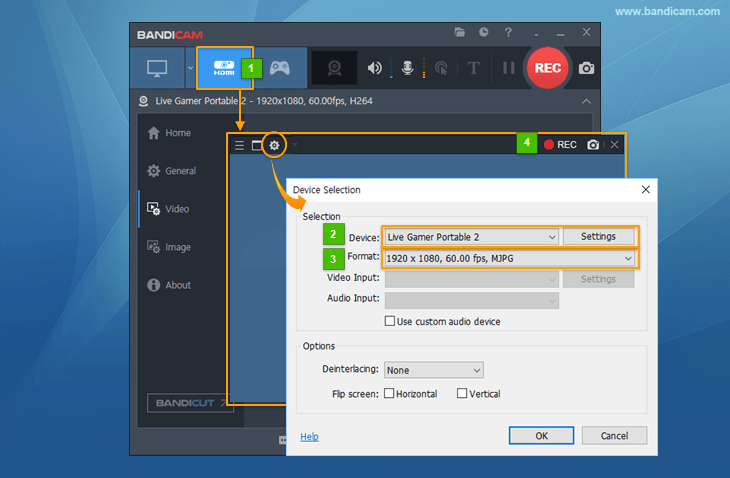
- Start Bandicam and choose "Device Recording" mode.
- Click the "Device Settings" button and select the device you want to record.
- Click the "Format Settings" button and select the video size, FPS, and color space.
(If you can't see the screen of the device, install a device driver and select another video size.)
- If you can see the screen of the device, click the [ ● REC ] to start/stop the recording.
* Frequently asked questions (FAQ)
1. If you can't capture the screen through a capture device, please install a suitable device driver and select another video size at the 'Format' menu.
2. A PCI/PCI-E capture card is usually better than a USB capture card. If you have a USB capture device, please plug the device into a USB 3.0 slot.