

1. Game Recording mode for DirectX/OpenGL/Vulkan games
This mode allows you to record gameplay without lag while showing FPS on supported games and 3D applications.
» See moreUse Game Recording mode for DirectX/OpenGL/Vulkan gameplay, Screen Recording mode for desktop and browser capture, and Device Recording mode for webcam, Xbox, PlayStation, smartphone, or IPTV input.
Use this mode for 2D and 3D games that run on DirectX, OpenGL, or Vulkan.
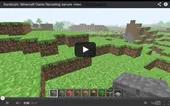 Minecraft game recording »
Record sandbox gameplay with Bandicam's game capture mode.
 Angry Birds game recording »
Capture light gameplay footage with simple Bandicam settings.
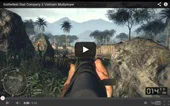 Battlefield game recording »
Record large-scale FPS gameplay while keeping lag under control.
 Call of Duty game recording »
Capture fast-action shooter clips with FPS overlay support.
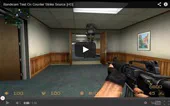 Counter-Strike recording »
Record competitive matches and tutorials with low overhead.
 Dirt 2 game recording »
Capture racing gameplay with sharp video and smooth frame pacing.
 Grand Theft Auto (series) »
Record open-world gameplay clips and tutorial footage.
 League of Legends (LoL) »
Save match highlights, guides, and champion gameplay videos.
 RuneScape game recording »
Capture browser or client-based RPG gameplay with Bandicam.
 World of Warcraft (WoW) »
Record raids, PvP, and guides from MMO gameplay sessions.
 Team Fortress 2 (TF2) »
Capture class guides, gameplay clips, and match highlights.
 The Sims 3, 4 recording »
Record simulation gameplay, builds, and character stories.
Use Device Recording mode when your source comes from a webcam or an external capture device.
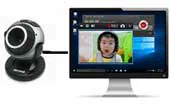 Facecam + Gameplay »
Combine webcam footage with gameplay for reaction or tutorial videos.
 Xbox game recording »
Capture Xbox gameplay using a supported capture device.
 PlayStation game recording »
Record PlayStation gameplay clips in high quality on PC.
 iPhone / iPad recording »
Capture iOS gameplay or screen activity with the proper connection.
 Smartphone or Tablet »
Record Android phones or tablets through Device Recording mode.
 Apple TV, IPTV, Set-top box »
Capture HDMI device output such as Apple TV or IPTV boxes.
Choose the tutorial that matches your recording target before adjusting settings.
This mode allows you to record gameplay without lag while showing FPS on supported games and 3D applications.
» See moreThis mode is best for flash or web-based games, tutorials, presentations, and any content displayed on your computer screen.
» See moreThis mode allows you to record webcam video, game consoles, smartphones, IPTV, or any supported capture device.
» See moreUse this comparison table to choose the right mode based on target, quality, and ease of use.
| Game Recording | Screen Recording | Device Recording | |
|---|---|---|---|
| Summary | This mode allows you to record your gameplay without lag while showing FPS. | This mode allows you to record flash or web-based games. | This mode allows you to record Xbox games or PlayStation games. |
| Recording target | Various 2D/3D games, iTunes, Windows Media Player, webcam, HDTV, and other 3D applications. | Computer screen, PowerPoint, Excel, web browsers, and flash games. | A webcam, Xbox/PlayStation, smartphone, IPTV, capture card, and other devices. |
| Quality | Excellent | Normal | Excellent |
| Ease of use | Difficult | Very easy | Difficult |
| Pros | This mode offers better quality recording than Screen Recording mode. | This mode allows you to record the full screen or a certain area of the computer screen. | This mode allows you to record a webcam, Xbox/PlayStation, or IPTV in high quality. |
| Cons | It does not allow you to record your computer screen, PowerPoint, and similar desktop targets. | It is not suitable for recording high-quality games or videos with high frame rates. | You need a webcam or capture device (hardware). |
| Tutorial | See more » | See more » | See more » |